Odysseus AI Windows Setup: WSL2, Docker Desktop, Ollama Checks
A practical Windows guide for installing Odysseus AI through WSL2 or Docker Desktop, connecting Ollama without localhost confusion, and checking ports, credentials, and firewall rules before you share the workspace.

In this guide
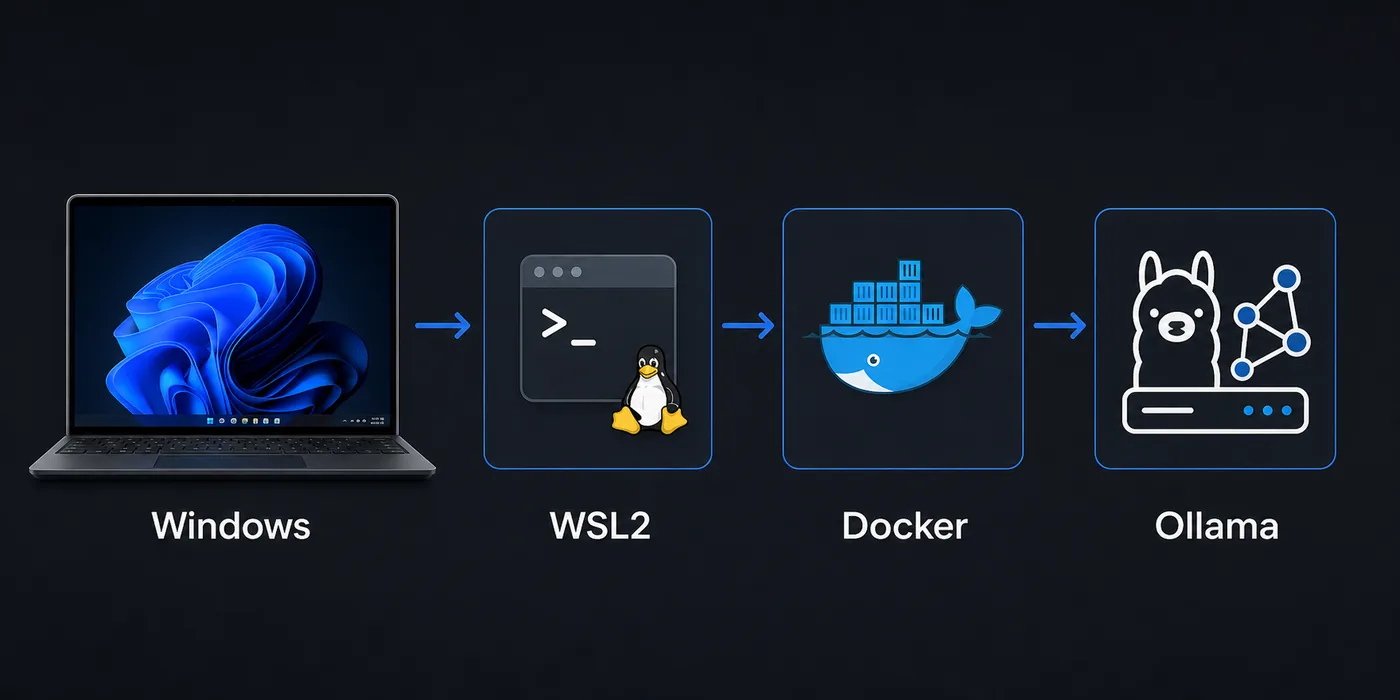
Windows can run Odysseus AI well, but the setup has more layers than a basic macOS or Linux install. A browser on Windows, a shell inside WSL2, Docker Desktop containers, and an Ollama server may all be present at the same time. This guide keeps those layers separate so you can prove the workspace, the model endpoint, and the network boundary one at a time.
Choose the Windows path by what you need to prove first
Start with WSL2 when you want the closest Linux-style development environment on a Windows machine. It keeps package installation, shell commands, and repository workflows more predictable than trying to run every script directly in PowerShell.
Use Docker Desktop when your priority is a disposable, repeatable container test. It is useful for proving that the app can start cleanly, but it adds one more network boundary between Odysseus AI and any model service running on the Windows host.
Treat native Windows commands as the last-mile convenience layer, not the whole setup. The browser, file explorer, and firewall live on Windows, while the application process may live in WSL2 or Docker. Naming that boundary early prevents most port and Ollama routing mistakes.
If a guide tells you to open the Odysseus AI gateway from Windows PowerShell, first identify where the process is running. Use PowerShell to test a Windows-hosted port, use the WSL shell for a WSL-hosted process, and test from inside the container for Docker. A successful request from the wrong layer does not prove the application can reach the same endpoint.
Recommended first pass
Install WSL2, clone the official repository inside the Linux filesystem, start the workspace locally, then connect Ollama only after the app itself loads in the browser.
Prepare Windows, WSL2, and the repository before changing settings
A good Windows setup begins before you run the Odysseus AI launcher. Confirm virtualization is enabled, WSL2 is installed, and Docker Desktop is using the WSL2 backend if you plan to run containers.
Keep the project inside the WSL filesystem rather than a synced Windows folder when possible; it avoids slow file watching and permission edge cases. Use the official GitHub repository as the command source because setup scripts, ports, and environment variables can change faster than third-party snippets.
1. Enable the Linux layer
Install or update WSL2, then use a mainstream distribution such as Ubuntu for the first test.
wsl --install
wsl --update
wsl -l -v
2. Clone inside WSL2
Keep the repository in the Linux home directory for fewer permission surprises.
cd ~
git clone https://github.com/odysseus-dev/odysseus.git
cd odysseus
3. Install dependencies from the project instructions
Follow the current README or setup script rather than mixing instructions from older posts.
# Verify commands on the official repository before running them4. Open the local UI from Windows
When the app reports a local port, open that address in the Windows browser and confirm the first screen before configuring model providers.
http://127.0.0.1:78605. Verify the gateway from PowerShell
Test the exact host and port reported by the running process before changing firewall or provider settings.
Invoke-WebRequest http://127.0.0.1:7000 -UseBasicParsing
Invoke-WebRequest http://127.0.0.1:7860 -UseBasicParsing
Docker Desktop on Windows: useful isolation with one extra boundary
Docker Desktop is the cleanest Windows path when you want to prove a containerized install without changing your WSL2 environment too much. It also mirrors server-style deployment thinking, which is helpful if you later move the workspace to a VPS or home server.
The tradeoff is networking. From inside a container, localhost points to that container. If Ollama runs on the Windows host, use the host gateway that Docker Desktop exposes rather than assuming 127.0.0.1 will cross the boundary.
| Setup path | Best for | Watch this |
|---|---|---|
| WSL2 process | Linux-like install flow, easy shell debugging, fewer container layers | Keep files in the WSL filesystem and verify the browser port from Windows. |
| Docker Desktop | Disposable test runs, isolated dependencies, deployment rehearsal | Use the correct host endpoint when the container needs a Windows-hosted service. |
| Windows-only shell | Small helper commands after the stack is working | Many Linux-oriented setup assumptions are easier inside WSL2. |
Ollama routing: test the model endpoint before connecting Odysseus AI
Ollama is often the second source of confusion on Windows. It may run as a Windows application, inside WSL2, or inside another container. Odysseus AI only needs a reachable endpoint, but the endpoint string changes depending on where each process lives.
Test Ollama directly first. If the model server does not respond from the same layer where Odysseus AI runs, the workspace will not fix that for you. Once the endpoint works, add it to the model provider settings with the same address you verified.
| Where Odysseus AI runs | Where Ollama runs | Endpoint to try first |
|---|---|---|
| WSL2 | Windows host | http://127.0.0.1:11434 or the Windows host gateway, depending on WSL networking |
| Docker container | Windows host | http://host.docker.internal:11434 |
| WSL2 | Same WSL2 distro | http://127.0.0.1:11434 |
| Docker container | Another container | Use the Docker network service name rather than localhost |
Quick endpoint smoke test
curl http://127.0.0.1:11434/api/tagsWindows troubleshooting matrix
Debug one boundary at a time. If the browser cannot reach the app, do not edit model settings yet. If the app runs but models fail, leave the app alone and test Ollama from the same layer where Odysseus AI is running.
| Symptom | Likely cause | First fix |
|---|---|---|
| The browser cannot open the Odysseus AI page | The app is listening on a different port, bound only inside WSL2, or blocked by a Windows firewall prompt. | Check the app log for the exact port, open 127.0.0.1 from Windows, and allow the local firewall prompt only for trusted networks. |
| Ollama works in Windows but not inside Docker | The container is using localhost, which points back to itself. | Try host.docker.internal:11434 from inside the container or move Ollama into the same Docker network. |
| File changes are slow or permissions look strange | The repository is stored under /mnt/c or a synced Windows folder. | Move the repo to the WSL home directory and reinstall dependencies there. |
| Login or admin password is unclear | A generated credential was missed in setup logs or an old local state is being reused. | Review the current setup output, rotate temporary credentials, and avoid posting secrets in screenshots. |
| Docker Desktop starts but containers cannot reach models | The model server is bound to a host interface the container cannot access. | Verify the model server bind address and test with curl from the same runtime layer. |
Final Windows safety checklist before exposing the workspace
Keep the first successful setup local. A self-hosted AI workspace often contains prompts, documents, model keys, and local paths that should not be reachable from a public network by accident.
Only add remote access after you understand authentication, reverse proxy behavior, TLS, firewall scope, and what data is stored by the workspace.
- Use official repository commands for the install path you are actually running.
- Record whether Odysseus AI is running in WSL2, Docker Desktop, or another host before changing endpoints.
- Test the app UI and the Ollama endpoint separately before connecting them.
- Change any temporary or generated admin credential after the first login.
- Keep the first run bound to local addresses unless you deliberately configure secure remote access.
- Do not publish screenshots that include API keys, generated passwords, local file paths, or private document names.
Safe default
If you are unsure which network can reach the workspace, stop at localhost and do not expose the port through router rules, tunnels, or public reverse proxies.
FAQ
References
- Official Odysseus AI GitHub repository - Use the project repository as the source of truth for current setup scripts and README changes.
- Microsoft WSL installation documentation - Official Windows guidance for installing and updating WSL2.
- Docker Desktop WSL backend documentation - Explains how Docker Desktop integrates with WSL2 on Windows.
- Ollama API documentation - Useful for checking whether the local model server endpoint responds before connecting it to Odysseus AI.
Related guides
- How to uninstall Odysseus AI - Remove the app safely while choosing which volumes, files, and shared models to keep.
- Odysseus AI Ollama setup - Use this after the Windows layer is healthy and you need model routing details.
- Odysseus AI macOS setup - Compare the Windows path with the Apple Silicon and Docker tradeoffs on Mac.
- PewDiePie AI explained - Read the orientation guide if you are still confirming what Odysseus AI is.
- Official Odysseus repository - Verify current install commands before running them.
2026-07-11
Back to Odysseus AI Wiki