Odysseus AI sur Windows : WSL2, Docker Desktop et Ollama
Guide pratique pour installer Odysseus AI sur Windows, choisir entre WSL2 et Docker Desktop, connecter Ollama sans confusion de localhost et vérifier ports, identifiants et pare-feu.

In this guide
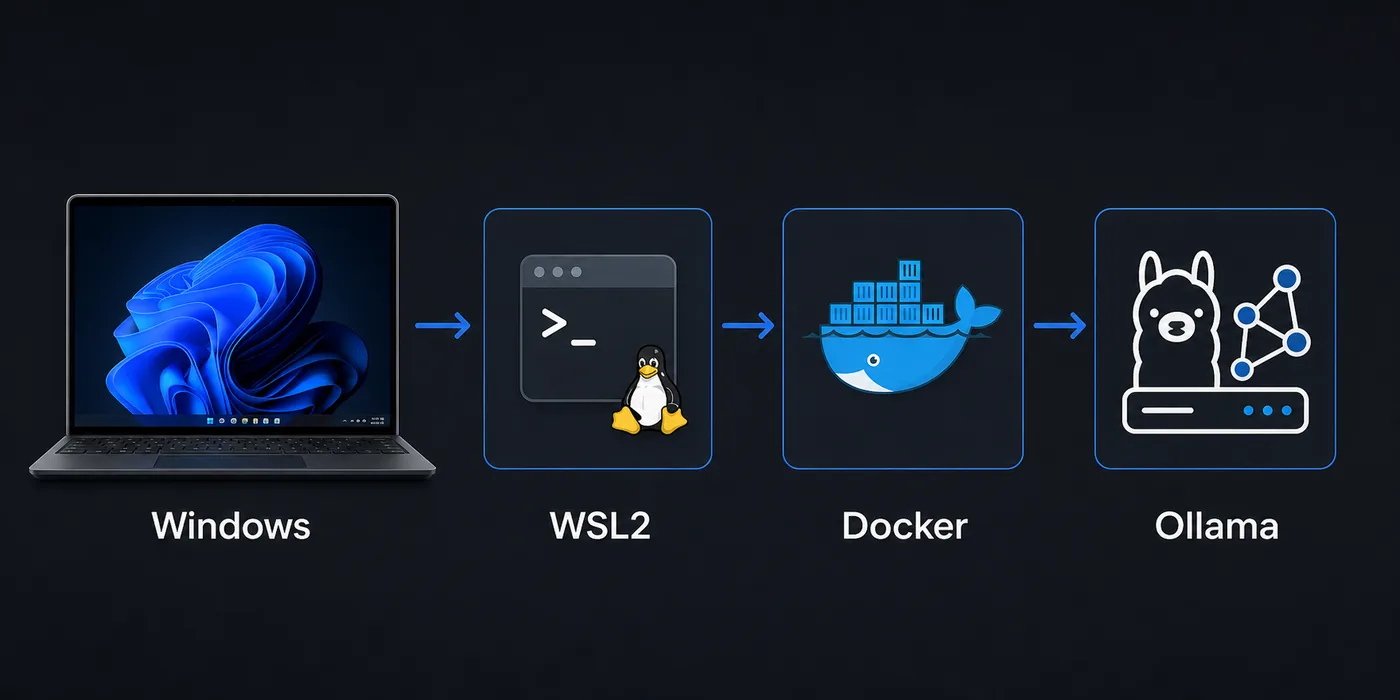
Windows peut très bien héberger Odysseus AI, mais il ajoute plusieurs frontières : navigateur Windows, shell WSL2, conteneurs Docker Desktop et serveur Ollama. Cette page sépare ces frontières pour tester l'application, le modèle et le réseau dans le bon ordre.
Choisir le chemin Windows
Commencez par WSL2 si vous voulez un environnement proche de Linux sur Windows.
Utilisez Docker Desktop pour un test isolé et reproductible, en gardant en tête la frontière réseau supplémentaire.
Avant d’ouvrir la passerelle Odysseus AI depuis PowerShell, identifiez l’environnement du processus. Testez un port Windows avec PowerShell, un processus WSL2 dans son shell et Docker depuis le conteneur.
Recommended first pass
Sur Windows, commencez généralement par WSL2, ajoutez Docker Desktop si vous voulez isoler l'exécution, puis testez Ollama séparément avant de le relier à Odysseus AI. La plupart des erreurs viennent d'un localhost qui ne désigne pas la même couche.
Préparer Windows et WSL2
Avant de lancer Odysseus AI, vérifiez la virtualisation, WSL2 et le backend WSL2 de Docker Desktop si nécessaire.
Placez le dépôt dans le système de fichiers WSL plutôt que dans un dossier Windows synchronisé.
1. Enable the Linux layer
Install or update WSL2, then use a mainstream distribution such as Ubuntu for the first test.
wsl --install
wsl --update
wsl -l -v
2. Clone inside WSL2
Keep the repository in the Linux home directory for fewer permission surprises.
cd ~
git clone https://github.com/odysseus-dev/odysseus.git
cd odysseus
3. Install dependencies from the project instructions
Follow the current README or setup script rather than mixing instructions from older posts.
# Verify commands on the official repository before running them4. Open the local UI from Windows
When the app reports a local port, open that address in the Windows browser and confirm the first screen before configuring model providers.
http://127.0.0.1:78605. Vérifier la passerelle avec PowerShell
Testez l’hôte et le port indiqués par le processus avant de modifier le pare-feu ou le fournisseur.
Invoke-WebRequest http://127.0.0.1:7000 -UseBasicParsing
Invoke-WebRequest http://127.0.0.1:7860 -UseBasicParsing
Workflow Docker Desktop
Docker Desktop est pratique pour valider un lancement propre et isolé.
Dans un conteneur, localhost désigne le conteneur. Pour joindre Ollama sur l'hôte Windows, testez host.docker.internal.
| Setup path | Best for | Watch this |
|---|---|---|
| WSL2 process | Linux-like install flow, easy shell debugging, fewer container layers | Keep files in the WSL filesystem and verify the browser port from Windows. |
| Docker Desktop | Disposable test runs, isolated dependencies, deployment rehearsal | Use the correct host endpoint when the container needs a Windows-hosted service. |
| Windows-only shell | Small helper commands after the stack is working | Many Linux-oriented setup assumptions are easier inside WSL2. |
Routage Ollama
Ollama peut tourner dans Windows, WSL2 ou un conteneur. Le bon endpoint dépend de l'endroit où tourne Odysseus AI.
Testez l'endpoint avec curl depuis la même couche avant de l'ajouter dans l'interface.
| Where Odysseus AI runs | Where Ollama runs | Endpoint to try first |
|---|---|---|
| WSL2 | Windows host | http://127.0.0.1:11434 or the Windows host gateway, depending on WSL networking |
| Docker container | Windows host | http://host.docker.internal:11434 |
| WSL2 | Same WSL2 distro | http://127.0.0.1:11434 |
| Docker container | Another container | Use the Docker network service name rather than localhost |
Quick endpoint smoke test
curl http://127.0.0.1:11434/api/tagsTable de dépannage
Déboguez une frontière à la fois : port de l'application, navigateur, puis endpoint du modèle.
| Symptom | Likely cause | First fix |
|---|---|---|
| The browser cannot open the Odysseus AI page | The app is listening on a different port, bound only inside WSL2, or blocked by a Windows firewall prompt. | Check the app log for the exact port, open 127.0.0.1 from Windows, and allow the local firewall prompt only for trusted networks. |
| Ollama works in Windows but not inside Docker | The container is using localhost, which points back to itself. | Try host.docker.internal:11434 from inside the container or move Ollama into the same Docker network. |
| File changes are slow or permissions look strange | The repository is stored under /mnt/c or a synced Windows folder. | Move the repo to the WSL home directory and reinstall dependencies there. |
| Login or admin password is unclear | A generated credential was missed in setup logs or an old local state is being reused. | Review the current setup output, rotate temporary credentials, and avoid posting secrets in screenshots. |
| Docker Desktop starts but containers cannot reach models | The model server is bound to a host interface the container cannot access. | Verify the model server bind address and test with curl from the same runtime layer. |
Checklist sécurité
Gardez la première installation en local, car le workspace peut contenir documents, prompts et clés.
N'ouvrez l'accès distant qu'après avoir clarifié authentification, TLS, proxy et pare-feu.
- Use official repository commands for the install path you are actually running.
- Record whether Odysseus AI is running in WSL2, Docker Desktop, or another host before changing endpoints.
- Test the app UI and the Ollama endpoint separately before connecting them.
- Change any temporary or generated admin credential after the first login.
- Keep the first run bound to local addresses unless you deliberately configure secure remote access.
- Do not publish screenshots that include API keys, generated passwords, local file paths, or private document names.
Safe default
Sur Windows, commencez généralement par WSL2, ajoutez Docker Desktop si vous voulez isoler l'exécution, puis testez Ollama séparément avant de le relier à Odysseus AI. La plupart des erreurs viennent d'un localhost qui ne désigne pas la même couche.
FAQ
References
- Official Odysseus AI GitHub repository - Use the project repository as the source of truth for current setup scripts and README changes.
- Microsoft WSL installation documentation - Official Windows guidance for installing and updating WSL2.
- Docker Desktop WSL backend documentation - Explains how Docker Desktop integrates with WSL2 on Windows.
- Ollama API documentation - Useful for checking whether the local model server endpoint responds before connecting it to Odysseus AI.
Related guides
- How to uninstall Odysseus AI - Remove the app safely while choosing which volumes, files, and shared models to keep.
- Odysseus AI Ollama setup - Use this after the Windows layer is healthy and you need model routing details.
- Odysseus AI macOS setup - Compare the Windows path with the Apple Silicon and Docker tradeoffs on Mac.
- PewDiePie AI explained - Read the orientation guide if you are still confirming what Odysseus AI is.
- Official Odysseus repository - Verify current install commands before running them.
2026-07-11
Back to Odysseus AI Wiki