Odysseus AI Windows 설정: WSL2, Docker Desktop, Ollama
Windows에서 Odysseus AI를 WSL2 또는 Docker Desktop으로 실행하고, Ollama localhost 혼동을 피하며, 포트와 인증 정보, 방화벽을 점검하는 실전 가이드입니다.

In this guide
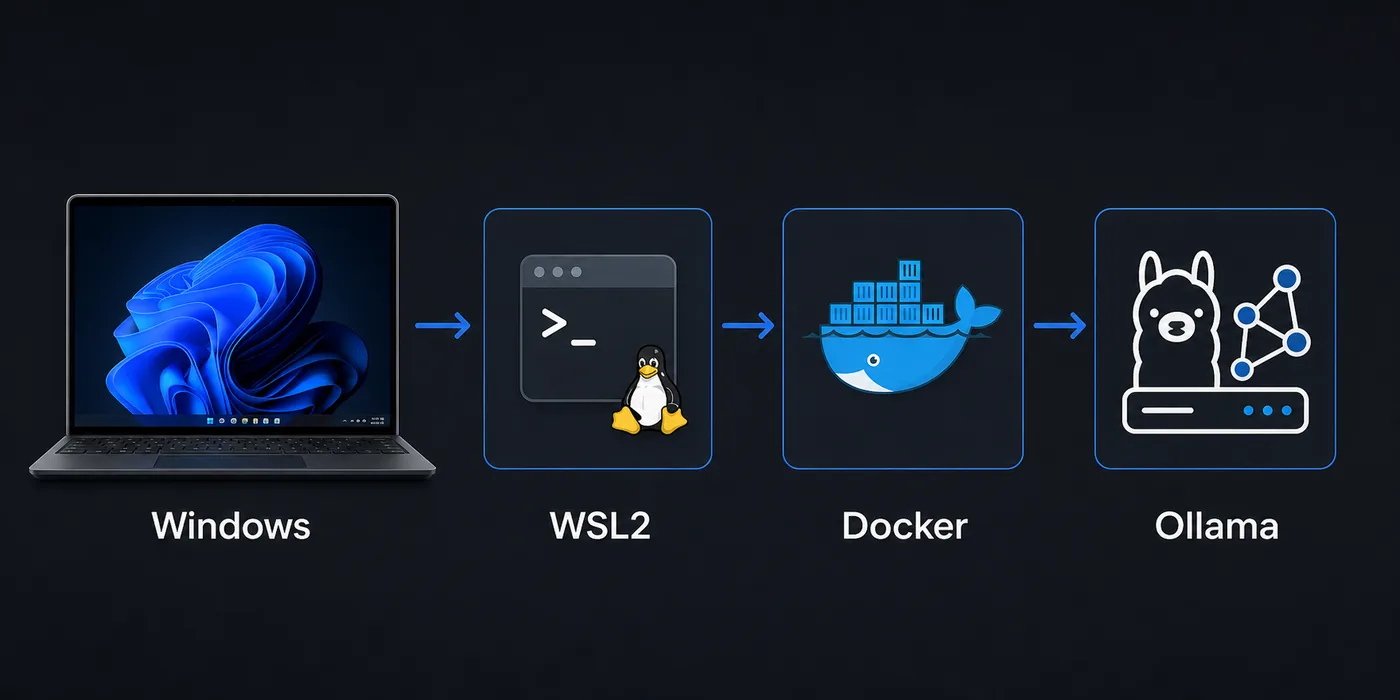
Windows에서도 Odysseus AI를 잘 실행할 수 있지만, 브라우저는 Windows에 있고 셸은 WSL2에 있으며 컨테이너는 Docker Desktop에 있고 Ollama는 별도 프로세스일 수 있습니다. 이 가이드는 앱, 모델 엔드포인트, 네트워크 경계를 하나씩 확인하도록 정리합니다.
Windows 경로 선택
Windows에서 Linux와 비슷한 환경이 필요하면 WSL2로 시작하는 것이 좋습니다.
Docker Desktop은 격리된 반복 테스트에 유용하지만 네트워크 경계가 하나 더 생깁니다.
PowerShell에서 Odysseus AI 게이트웨이를 열기 전에 프로세스가 Windows, WSL2, Docker 중 어디에서 실행되는지 확인하세요. 같은 실행 계층에서 연결을 테스트해야 합니다.
Recommended first pass
대부분의 Windows 사용자는 WSL2로 시작하고, 격리가 필요할 때 Docker Desktop을 쓰며, Ollama는 Odysseus AI에 연결하기 전에 따로 테스트하는 것이 안전합니다. localhost는 Windows, WSL2, Docker 컨테이너에서 서로 다르게 해석됩니다.
Windows와 WSL2 준비
시작 전에 가상화, WSL2, Docker Desktop의 WSL2 백엔드를 확인하세요.
권한과 속도 문제를 줄이려면 저장소를 WSL 파일시스템 안에 두는 것이 좋습니다.
1. Enable the Linux layer
Install or update WSL2, then use a mainstream distribution such as Ubuntu for the first test.
wsl --install
wsl --update
wsl -l -v
2. Clone inside WSL2
Keep the repository in the Linux home directory for fewer permission surprises.
cd ~
git clone https://github.com/odysseus-dev/odysseus.git
cd odysseus
3. Install dependencies from the project instructions
Follow the current README or setup script rather than mixing instructions from older posts.
# Verify commands on the official repository before running them4. Open the local UI from Windows
When the app reports a local port, open that address in the Windows browser and confirm the first screen before configuring model providers.
http://127.0.0.1:78605. PowerShell에서 게이트웨이 확인
방화벽이나 공급자 설정을 바꾸기 전에 로그에 표시된 호스트와 포트를 테스트합니다.
Invoke-WebRequest http://127.0.0.1:7000 -UseBasicParsing
Invoke-WebRequest http://127.0.0.1:7860 -UseBasicParsing
Docker Desktop 흐름
Docker Desktop은 깨끗하고 격리된 실행 확인에 적합합니다.
컨테이너 안의 localhost는 컨테이너 자신입니다. Windows 호스트의 Ollama에는 host.docker.internal을 테스트하세요.
| Setup path | Best for | Watch this |
|---|---|---|
| WSL2 process | Linux-like install flow, easy shell debugging, fewer container layers | Keep files in the WSL filesystem and verify the browser port from Windows. |
| Docker Desktop | Disposable test runs, isolated dependencies, deployment rehearsal | Use the correct host endpoint when the container needs a Windows-hosted service. |
| Windows-only shell | Small helper commands after the stack is working | Many Linux-oriented setup assumptions are easier inside WSL2. |
Ollama 엔드포인트
Ollama는 Windows, WSL2, 컨테이너 어디에서든 실행될 수 있습니다. Odysseus AI가 있는 계층에서 닿는 주소가 중요합니다.
설정에 넣기 전에 같은 계층에서 curl로 응답을 확인하세요.
| Where Odysseus AI runs | Where Ollama runs | Endpoint to try first |
|---|---|---|
| WSL2 | Windows host | http://127.0.0.1:11434 or the Windows host gateway, depending on WSL networking |
| Docker container | Windows host | http://host.docker.internal:11434 |
| WSL2 | Same WSL2 distro | http://127.0.0.1:11434 |
| Docker container | Another container | Use the Docker network service name rather than localhost |
Quick endpoint smoke test
curl http://127.0.0.1:11434/api/tags문제 해결 표
앱 포트와 브라우저 접근을 먼저 확인한 뒤 모델 엔드포인트를 확인하세요.
| Symptom | Likely cause | First fix |
|---|---|---|
| The browser cannot open the Odysseus AI page | The app is listening on a different port, bound only inside WSL2, or blocked by a Windows firewall prompt. | Check the app log for the exact port, open 127.0.0.1 from Windows, and allow the local firewall prompt only for trusted networks. |
| Ollama works in Windows but not inside Docker | The container is using localhost, which points back to itself. | Try host.docker.internal:11434 from inside the container or move Ollama into the same Docker network. |
| File changes are slow or permissions look strange | The repository is stored under /mnt/c or a synced Windows folder. | Move the repo to the WSL home directory and reinstall dependencies there. |
| Login or admin password is unclear | A generated credential was missed in setup logs or an old local state is being reused. | Review the current setup output, rotate temporary credentials, and avoid posting secrets in screenshots. |
| Docker Desktop starts but containers cannot reach models | The model server is bound to a host interface the container cannot access. | Verify the model server bind address and test with curl from the same runtime layer. |
보안 체크리스트
첫 성공은 로컬에만 두세요. 워크스페이스에는 프롬프트, 문서, 키가 포함될 수 있습니다.
원격 공개는 인증, TLS, 리버스 프록시, 방화벽을 명확히 한 뒤 진행하세요.
- Use official repository commands for the install path you are actually running.
- Record whether Odysseus AI is running in WSL2, Docker Desktop, or another host before changing endpoints.
- Test the app UI and the Ollama endpoint separately before connecting them.
- Change any temporary or generated admin credential after the first login.
- Keep the first run bound to local addresses unless you deliberately configure secure remote access.
- Do not publish screenshots that include API keys, generated passwords, local file paths, or private document names.
Safe default
대부분의 Windows 사용자는 WSL2로 시작하고, 격리가 필요할 때 Docker Desktop을 쓰며, Ollama는 Odysseus AI에 연결하기 전에 따로 테스트하는 것이 안전합니다. localhost는 Windows, WSL2, Docker 컨테이너에서 서로 다르게 해석됩니다.
FAQ
References
- Official Odysseus AI GitHub repository - Use the project repository as the source of truth for current setup scripts and README changes.
- Microsoft WSL installation documentation - Official Windows guidance for installing and updating WSL2.
- Docker Desktop WSL backend documentation - Explains how Docker Desktop integrates with WSL2 on Windows.
- Ollama API documentation - Useful for checking whether the local model server endpoint responds before connecting it to Odysseus AI.
Related guides
- How to uninstall Odysseus AI - Remove the app safely while choosing which volumes, files, and shared models to keep.
- Odysseus AI Ollama setup - Use this after the Windows layer is healthy and you need model routing details.
- Odysseus AI macOS setup - Compare the Windows path with the Apple Silicon and Docker tradeoffs on Mac.
- PewDiePie AI explained - Read the orientation guide if you are still confirming what Odysseus AI is.
- Official Odysseus repository - Verify current install commands before running them.
2026-07-11
Back to Odysseus AI Wiki