Ollama Docker Setup: CPU, GPU, Volumes, and API Checks
A practical path for running Ollama in Docker without losing model files, confusing host and container networking, or exposing a local API by accident.

In this guide
- What an Ollama Docker setup changes
- Choose CPU, NVIDIA GPU, or AMD GPU
- Create persistent model storage
- Start the container and verify the API
- Connect host applications without localhost confusion
- Keep models, context, and exposure safe
- Troubleshoot health, GPU, volume, and API failures
- Ollama Docker FAQ
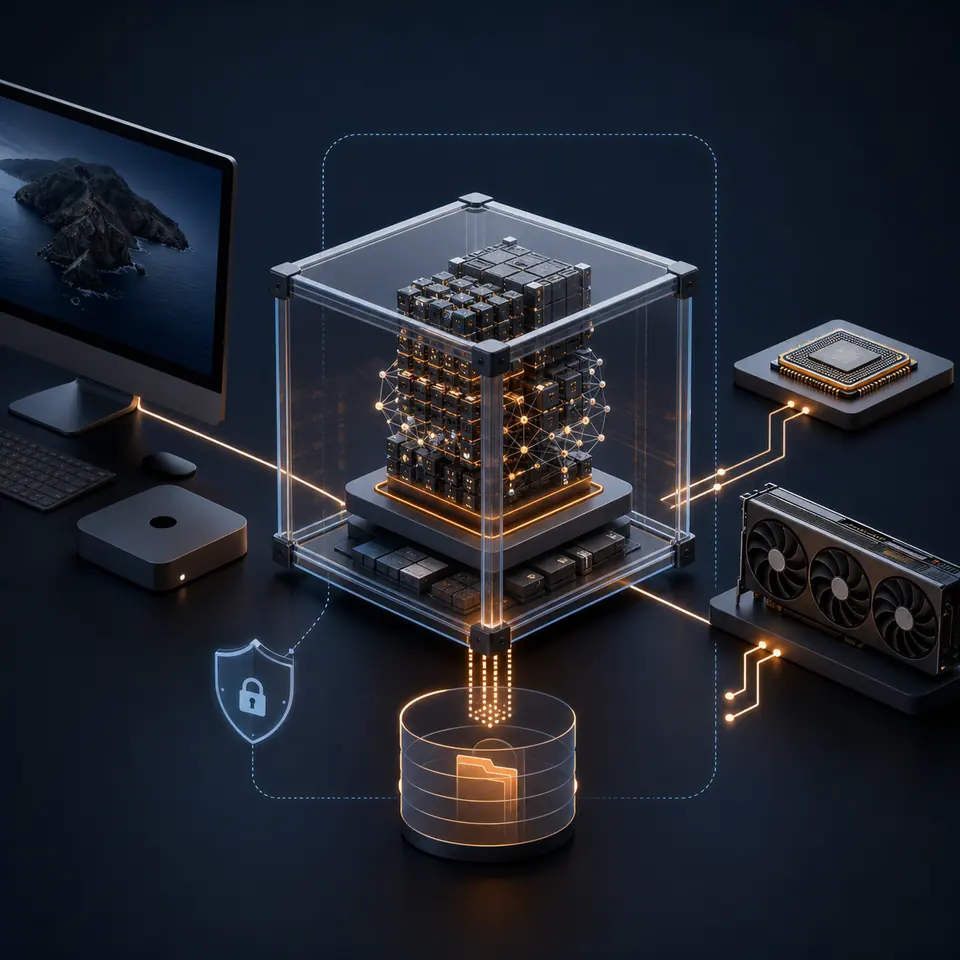
The phrase Ollama Docker setup usually hides three different decisions: where the model files live, how the container reaches the host or another service, and whether the container should use CPU or an available GPU. Start with the smallest working path. Run the official Ollama image with a named volume, verify the local API, then add GPU flags or a second application only after the base container is healthy.
What an Ollama Docker setup changes
Ollama normally feels like a local service: a command starts the runtime, model files live on the machine, and clients call port 11434. Docker wraps that service in a container with its own filesystem, process namespace, network rules, and lifecycle. The container is convenient for repeatable deployment, but it also means that a model pulled inside the container can disappear when the container is removed unless /root/.ollama is backed by a volume.
This is why a working Docker command is not the whole setup. You need to decide whether Docker is the only Ollama runtime, whether a host application or another container will call it, and whether model downloads should survive upgrades. Keep those boundaries visible before adding OpenCode, an MCP host, a web UI, or a remote client.
Container lifecycle is not model storage
Removing a container is safe only when the model directory is outside the writable container layer. A named volume or a deliberate bind mount is the part that makes an Ollama Docker deployment persistent.
Choose the CPU, NVIDIA GPU, or AMD GPU path
Use the CPU path first when you are validating networking, volumes, or a new host. It has the fewest moving parts and gives you a clean baseline for comparing model load time and response speed. Once the API works, switch to the accelerator-specific command documented for your host rather than adding random Docker flags copied from a different runtime.
NVIDIA containers normally depend on a working host driver and the NVIDIA Container Toolkit. AMD deployments can use a different image tag and device mapping, and support depends on the operating system, runtime, and current Ollama guidance. Treat the GPU as an optimization layer: it should not change the endpoint, volume path, or the basic health checks.
docker versiondocker run --rm --gpus=all nvidia/cuda:12.0.0-base-ubuntu22.04 nvidia-smi| Path | Use it when | Important check |
|---|---|---|
| CPU | You want the simplest baseline or have no supported accelerator | Confirm the API and model response before tuning performance |
| NVIDIA GPU | The host driver and NVIDIA Container Toolkit are already healthy | Check Docker can see the GPU before pulling a large model |
| AMD GPU | Your host and Ollama image support the required ROCm path | Follow the current image and device requirements for the exact host |
| Mixed host and container | Another service needs Ollama over a Docker network | Use the service name inside the network, not the host loopback address |
Create persistent model storage
A named volume is the easiest default for an Ollama Docker setup because Docker owns the storage location and the container can be replaced without moving model files manually. The official image stores its Ollama data under /root/.ollama, so mount the volume there consistently. Do not create one volume for the first run and a different volume for the upgrade unless you deliberately want a fresh model library.
A bind mount can be useful when you need to inspect disk usage, back up a known host directory, or place models on a particular drive. It also creates more permission and path decisions. For a first deployment, a named volume is usually easier to explain and harder to break.
Do not confuse a volume with a backup
A Docker volume protects model files from container replacement, but it is not automatically a second copy. Back up or recreate the volume deliberately if the model library matters.
docker volume create ollama-datadocker run -d --name ollama -p 11434:11434 -v ollama-data:/root/.ollama ollama/ollamadocker exec -it ollama ollama pull <model-name>Start the container and verify the API
After docker run returns a container ID, check the container state before pulling a large model. docker ps shows whether the process is still running; docker logs can show a port, permission, or runtime error. Then query /api/tags from the host. A successful tags response proves that the HTTP endpoint is reachable, not that every model is loaded or that a client has permission to use it.
Use one small model request as the second check. This separates a healthy HTTP listener from a working model path. If the API responds but the model request fails, inspect the model name, available disk space, memory, and container logs before changing network settings.
-
Check the process
Confirm the container is Up and that the published port is the one you intended to expose.
-
Check the endpoint
Request /api/tags from the same machine that published port 11434 and record the status code.
-
Check a model
Pull or use a small model, then run one harmless prompt before connecting an editor or agent.
docker ps --filter name=ollamadocker logs ollama --tail 100curl http://127.0.0.1:11434/api/tagsdocker exec -it ollama ollama listConnect host applications without localhost confusion
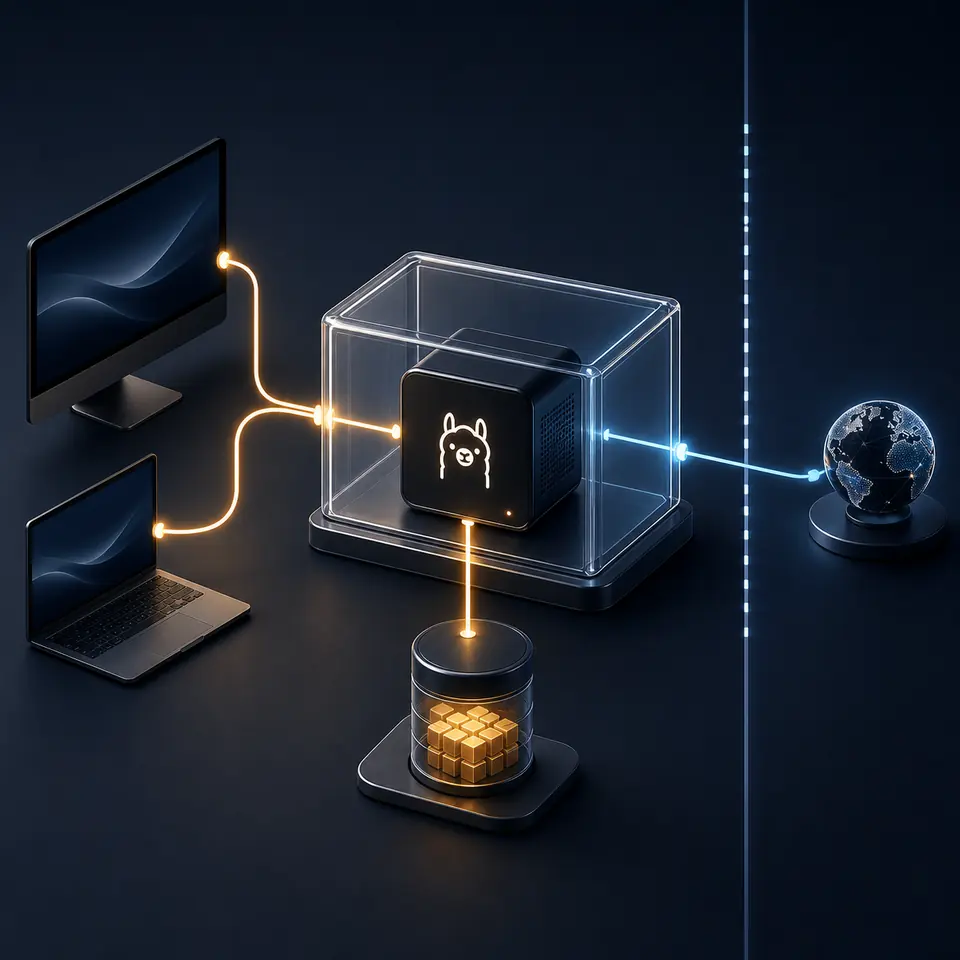
The correct Ollama URL depends on where the client runs. A desktop application on the same host can normally call http://127.0.0.1:11434 when Docker publishes the port. A second container on the same Docker network should call the Ollama service by its Compose service name and port, such as http://ollama:11434. Inside a container, 127.0.0.1 means that container itself; it does not automatically mean the Windows, macOS, or Linux host.
For a remote client, use an explicitly protected address and firewall rule. Do not publish port 11434 to the public internet just to make a test application connect. If the client needs a remote endpoint, document the route, authentication or private network boundary, and the exact model service it is allowed to reach.
| Client location | Typical endpoint | Common mistake |
|---|---|---|
| Host desktop | http://127.0.0.1:11434 | Using a container service name from a host application |
| Another Compose service | http://ollama:11434 | Using localhost, which points back to the calling container |
| Separate machine | A private, firewalled host address | Publishing an unauthenticated API on a public interface |
| Odysseus or an editor | The endpoint required by that application's provider settings | Changing the endpoint before the base API check passes |
Keep model files, context limits, and exposure safe
Docker does not automatically make an Ollama service private. A published port may bind to all interfaces depending on the command and host defaults. Prefer a loopback bind for a host-only test, such as -p 127.0.0.1:11434:11434, when no other machine needs access. If a Compose service needs the API internally, keep the service on a private network and publish no host port unless it is required.
Model context length, concurrency, and GPU memory can change how much RAM or VRAM the container uses. Increase one variable at a time and watch docker stats, host memory, and the model's response behavior. Keep secrets out of images, command history, screenshots, and versioned Compose files; a local model endpoint and a third-party search tool have different privacy boundaries.
| Check | Why it matters | Safer default |
|---|---|---|
| Port binding | Controls which interfaces can reach the API | Bind to loopback for host-only testing |
| Volume path | Controls whether model files survive container replacement | Use one named volume and document it |
| Context and concurrency | Can multiply memory use during requests | Start small and measure before increasing limits |
| External tools | May send prompts or retrieved content outside the host | Review the provider and keep tool permissions narrow |
Troubleshoot health, GPU, volume, and API failures
When an Ollama Docker deployment fails, change one layer at a time. First check that Docker itself can start a simple container. Next check that the Ollama container remains running. Then check the volume, the API, the model, and finally the client application. Replacing the whole command after every error hides the actual boundary that failed.
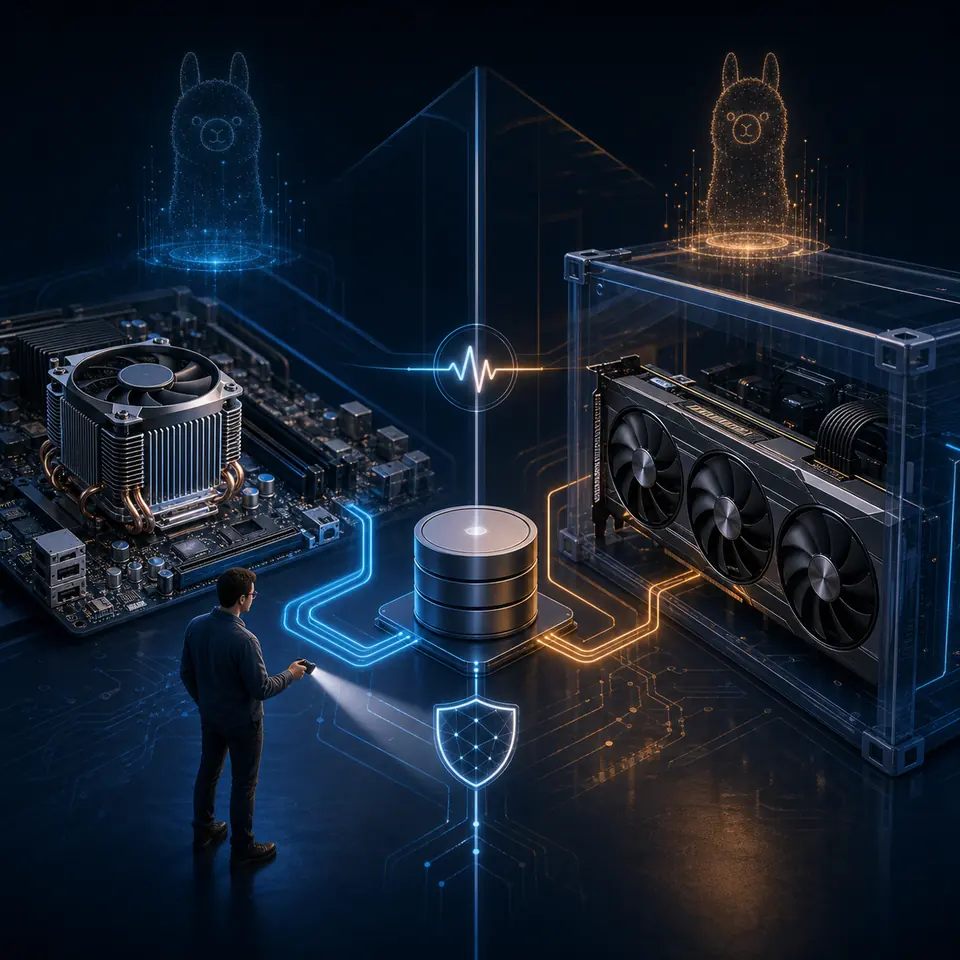
GPU failures are usually host-runtime failures rather than Ollama API failures. A container can answer /api/tags while still using CPU because the GPU was not passed through, the driver is incompatible, or the selected image does not match the host. Volume failures often show up as a missing model after recreation; compare docker inspect output and the mounted destination before pulling again.
Removing the container is not the same as deleting the volume
The last command removes only the container. Do not run docker volume rm ollama-data until you have confirmed that the model files are no longer needed or have been backed up.
docker inspect ollamadocker stats ollamadocker stop ollama && docker rm ollama| Symptom | Likely boundary | Next check |
|---|---|---|
| Container exits immediately | Image, command, permissions, or runtime | Read docker logs ollama and inspect the exit code |
| API connection refused | Port binding or process health | Check docker ps, published ports, and /api/tags |
| Model disappeared | Wrong or missing volume | Compare docker inspect mounts and the /root/.ollama destination |
| GPU flag fails | Host driver or container runtime | Run the smallest vendor GPU test before starting Ollama |
| Client works on host but not in container | Network namespace | Replace localhost with the Compose service name |
| Requests use too much memory | Context, concurrency, or model size | Lower one setting and watch host and container metrics |
Ollama Docker FAQ
Official references
- Ollama Docker documentation - Official container images and Docker deployment guidance
- Ollama API documentation - Official endpoint and request reference
- Docker Compose GPU support - Official GPU reservation and Compose guidance
Related local AI setup guides
- Odysseus AI Docker Setup - A Docker-first deployment guide for the wider Odysseus AI workspace.
- Odysseus AI Ollama Setup - Connect an existing Ollama runtime to Odysseus without mixing host and container endpoints.
- Ollama MCP Server - Separate local inference from MCP tools, approvals, and external network calls.
- Ollama Web Search - Compare hosted Web Search API behavior with local and self-hosted search paths.
- OpenCode Ollama Setup - Use a containerized Ollama endpoint from a local coding-agent workflow.
Last updated August 22, 2026
Back to homepage